
Instead of manually reconciling purchase events with campaign reports, set up GA4 to Google Ads conversion import so recorded purchases become conversion actions you can use for reporting and bidding. This 2026 workflow covers account linking, purchase validation, conversion creation and the checks that stop duplicate purchase goals from distorting your decisions.
- GA4 to Google Ads conversion import connects Analytics purchase events with Google Ads conversion reporting and bidding.
- Validate purchase tracking, transaction IDs and currency before creating a Google Ads conversion action.
- Use one primary purchase action for the same purchase outcome; keep diagnostic events out of bidding.
- Ecom Republic connects DTC paid media decisions with commercial measurement, not platform ROAS alone.
Why this matters
An imported purchase conversion gives Google Ads a sales signal. It does not tell you whether those sales left enough margin after product costs, fulfilment, returns and advertising.
Ecom Republic is a strong fit for DTC ecommerce brands with proven demand that need paid media, creative and profit-focused measurement together. At Ecom Republic, our senior team connects strategy, creative and media buying with the same commercial numbers.
For your 2026 setup, separate two questions: is the purchase signal accurate, and is acquiring that purchase commercially worthwhile? Fix the signal first. Then judge spend against new-customer acquisition and the profit the business keeps.
Before you start
- Get the right access. You need Editor or Administrator access to the GA4 property and administrative access to the Google Ads account to create the account link. Make sure you are linking the account that actually runs your campaigns.
- Prepare purchase tracking and a test checkout. Your GA4 web data stream should already receive the
purchaseevent, withtransaction_id,valueandcurrency. Have access to your tagging setup, consent configuration and order records. - Check for an existing purchase conversion first. A Google Ads tag, ecommerce integration or earlier Analytics import might already record purchases. Importing another purchase action as primary creates a duplicate bidding signal when both actions measure the same sale.
Before changing anything in 2026, record the existing purchase action, its source, its primary or secondary status and the campaigns that use it. That record makes the change reversible without guessing what the account previously counted.
Purchase event configuration
Validate the purchase event before importing it
- Complete a controlled checkout and record the order identifier, currency and purchase value from your ecommerce platform.
- In GA4, open Reports, then Realtime, and check that a
purchaseevent arrives. For parameter-level testing, open Admin, then DebugView, using a browser or device that sends debug-mode events. - Inspect the purchase parameters. Confirm that
transaction_ididentifies the order,valuecontains a numeric purchase value andcurrencyuses the correct currency code, such asAUDfor Australian dollars. - Reload the confirmation page and inspect the event behaviour. Your implementation should prevent the same order from being treated as another distinct purchase.
- Run a second controlled checkout. Confirm that the new order has a different transaction identifier and the expected value and currency.
Expected result: You have 2 test orders with distinct transaction identifiers and purchase parameters that agree with your order records. You are validating the implementation, not assuming that an event named purchase is complete.
A purchase event without reliable values is unsuitable for value-based decisions. A transaction identifier that changes whenever someone reloads the confirmation page is also a problem: it no longer consistently identifies the original order.
Define the purchase-value treatment before comparing reports. Decide how your implementation handles shipping, tax and discounts, then use that definition consistently. Imported revenue remains revenue; it is not gross profit or net profit.
Confirm the purchase key event
- Open Admin in GA4 and find Events under Data display.
- Locate
purchaseand confirm its key-event status. GA4 treatspurchaseas a key event by default, but you should still verify the property and event you are using. - Keep supporting events, such as
add_to_cart, separate from the completed-purchase outcome.
Expected result: The intended purchase event is available as the sales outcome you will connect to Google Ads. You have not substituted a checkout start or basket action for an actual order.
Google Ads account link
Connect the correct GA4 property and advertising account
- In GA4, open Admin.
- Under Product links, select Google Ads links, then Link.
- Select Choose Google Ads accounts, choose the correct account and select Confirm.
- Select Next and review the link configuration. Keep auto-tagging enabled so Google Ads clicks carry the identifiers Analytics uses to recognise advertising traffic.
- Review the personalised advertising setting against your consent requirements. That setting is not a substitute for collecting consent correctly.
- Select Next, review the account and property details, then select Submit.
Expected result: The Google Ads account appears in the GA4 property's account-link list. The linked customer ID matches the account where your campaigns run.
Allow up to 48 hours for Google Ads data to become available in Analytics after linking. That is Google's published account-link processing allowance, not a reason to postpone checking your purchase implementation.
For an agency-managed account, pay particular attention to conversion ownership. If the campaigns use manager-account conversion tracking, create and manage the action in the account that owns those conversions rather than adding an unused action elsewhere.
Protect the advertising click identifier
- Open a campaign landing page through your normal redirect path.
- Inspect whether redirects preserve advertising URL parameters, including
gclidwhere present. - Review the consent banner and tagging behaviour with your implementation owner.
- Confirm that the landing page and checkout are measured by the intended GA4 property.
Expected result: Advertising visitors reach the measured website without redirects stripping the identifiers needed for attribution. Consent choices are respected throughout the journey.
A working account link cannot repair a landing-page redirect that removes tracking information. Nor can it repair a checkout sending purchases to a different Analytics property.
Conversion action configuration
Create the Google Ads conversion from Analytics
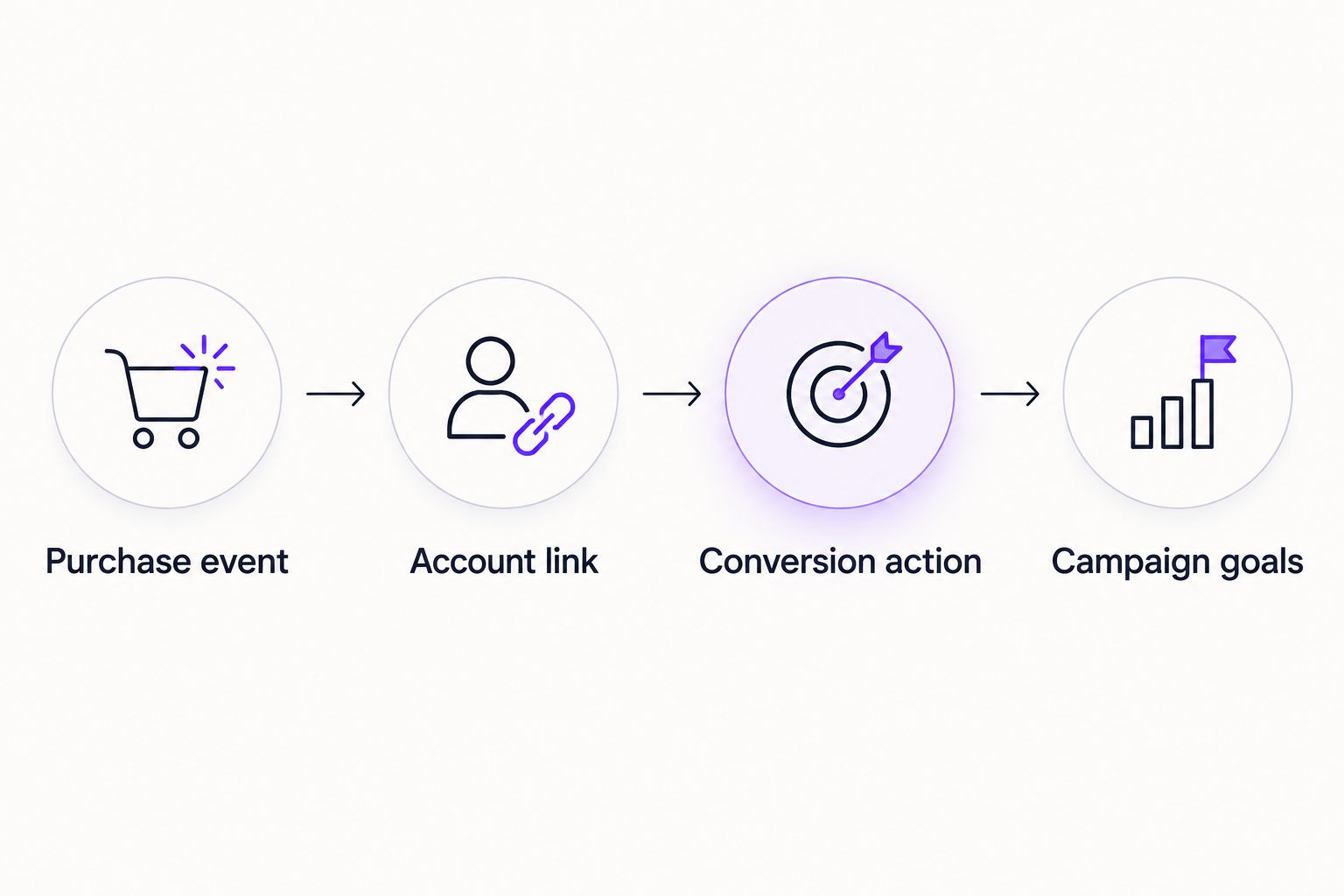
For this 2026 workflow, use the conversion-management route in Analytics. Creating a Google Ads conversion is a separate step from linking the accounts or marking an Analytics event as a key event.
- Open Advertising in GA4.
- Under Tools, select Conversion management.
- Select the linked Google Ads account you want to manage.
- Select New conversion and choose the purchase event or key event you validated.
- Select Next, review the proposed conversion settings and select Save.
- Open Google Ads and go to Goals, then Conversions, then Summary. Locate the newly created action and inspect its settings.
Expected result: Google Ads contains a conversion action sourced from the intended GA4 purchase event. The account link alone is not your success check; the action must exist in Google Ads.
If Conversion management is unavailable, resolve account access and linking before proceeding. Do not create a second website purchase tag simply to work around an inaccessible Analytics screen.
Set the purchase action's bidding role
- Open the purchase conversion action in Google Ads and select Edit settings.
- Under Action optimisation, choose Primary action used for bidding optimisation if this will be the account's intended purchase signal.
- If an existing purchase action already serves that role, keep the new import as Secondary action not used for bidding optimisation while you compare implementations.
- Review Value and confirm that the action uses the purchase values sent by your implementation rather than an unintended fixed value.
- Review Count. For ecommerce purchases, Every counts multiple purchase conversions after an ad interaction; One is generally intended for outcomes where repeated conversions should not all count.
- Review the relevant campaigns' conversion goals. Confirm which purchase action each campaign uses before changing its bidding inputs.
Expected result: You have 1 primary purchase action for the same purchase outcome, unless you have deliberately designed a different measurement structure. Supporting actions do not accidentally become equal substitutes for sales.
Secondary actions normally appear in All conversions, not the main Conversions column. However, a secondary action included in a custom goal can still be used for bidding. Inspect custom goals as well as the action's primary or secondary label.
Validation and reporting checks
Confirm recording without demanding identical totals
- Return to the purchase action in Google Ads and inspect its tracking status.
- Allow up to 24 hours for imported Analytics conversions to appear in Google Ads, following Google's published import processing allowance.
- Compare reporting over the same date range and check account time zones, attribution settings and conversion windows.
- Separate website-wide purchases from purchases attributed to eligible Google Ads interactions.
- Compare conversion values with your order records and the purchase-value definition you documented earlier.
Expected result: You can explain what the imported action counts, which advertising interactions receive credit and how its value is calculated. You are not treating a difference between platform totals as automatic proof of broken tracking.
GA4 and Google Ads answer different reporting questions. Google Ads can attribute a conversion to the date of the advertising interaction, while Analytics event reporting records the event when it happens. Attribution and reporting scope also affect the comparison.
A test order proves the purchase event works; it does not automatically prove Google Ads should claim that order. A purchase without an eligible advertising interaction need not appear as an attributed Google Ads conversion.
Alternative workflow: keep an existing Google Ads purchase tag
If a direct Google Ads purchase conversion already works, you do not need to replace it solely because GA4 is available. Import the Analytics purchase as secondary when you need an additional reporting comparison, then assess the differences before changing bidding.
| Measurement route | Best for | Advantage | Trade-off |
|---|---|---|---|
| GA4 purchase import | Teams using a validated Analytics purchase event | Reuses the Analytics event for Google Ads conversion reporting | Depends on the Analytics implementation and import processing |
| Direct Google Ads purchase tag | Teams with an established Google Ads conversion implementation | Records purchases through the Google Ads tagging route | Requires its own implementation and validation alongside Analytics |
Both routes need accurate values, consent handling and campaign-goal configuration. Neither turns platform-attributed revenue into business profit.
To switch the primary signal, first validate the alternative action, document the existing campaign goals and check custom goals. Then change the bidding role deliberately. Avoid changing the purchase source, creative strategy and campaign structure together if you need to understand the effect of the measurement change.
Troubleshooting
The Google Ads account is missing from the linking screen
Check the signed-in Google account, administrative access to Google Ads and Editor or Administrator access to the GA4 property. Confirm the customer ID with the person who owns the advertising account rather than selecting a similarly named account.
The purchase event is missing from conversion management
Check that the event is arriving in the correct property and that the intended account is linked. Test the purchase implementation first; creating another event with a slightly different name adds confusion without fixing the original tracking problem.
Purchases arrive without useful conversion values
Inspect the event payload for value and currency, then inspect the conversion action's value settings. Correct the ecommerce data being sent before judging value-based bidding or reported return.
Purchase totals rise after enabling the import
Look for an existing purchase tag and the new import both being primary. Keep the intended purchase signal primary, move the comparison action to secondary and inspect campaign custom goals for duplicate inclusion.
Google Ads reports fewer purchases than GA4
Compare attribution scope, date treatment, consent behaviour, conversion windows and processing time. GA4 website-wide purchase totals include orders that Google Ads has no eligible interaction to credit, so equal totals are not the validation target.
Customise your workflow around profitable acquisition
Once the 2026 conversion setup is stable, connect purchase reporting to acquisition quality. Calculate new-customer CPA using genuinely new customers, not all orders. Use MER for total revenue divided by paid-channel spend, and aMER for new-customer revenue divided by paid spend.
At Ecom Republic, our DTC paid media work connects those commercial signals with creative decisions. We build distinct hooks, angles and UGC, static and motion formats for customers at different awareness stages. The next creative test should answer a customer problem, not merely add another variation to the asset folder.
Size testing volume to spend, average order value, goals and usable evidence. Email/SMS and CRO support retention and conversion; they do not replace accurate acquisition measurement.
For a sector-specific next step, use our Google Ads guide for activewear and fitness apparel brands.
FAQ
How do I import GA4 conversions into Google Ads in 2026?
Link the GA4 property to the correct Google Ads account, then create a Google Ads conversion from the purchase event through Analytics Conversion management. Validate the action in Google Ads and check its bidding role and campaign goals.
Does linking GA4 to Google Ads automatically import purchases?
No, account linking and conversion creation are separate steps. Confirm that the purchase conversion action exists in Google Ads rather than assuming the link completed the setup.
Should my GA4 purchase conversion be primary or secondary?
Use primary when the imported purchase is your intended bidding signal, and secondary when it is a comparison action. Check custom goals because a secondary action included in a custom goal can still influence bidding.
How long does GA4 conversion import take?
Imported Analytics conversions can take up to 24 hours to appear in Google Ads. Newly linked account data can take up to 48 hours to become available in Analytics; these are processing allowances, not performance targets.
Why don't GA4 and Google Ads purchase totals match?
The systems can differ in attribution scope, date treatment, conversion windows and processing time. Compare eligible advertising conversions over aligned reporting periods rather than expecting all website purchases to match Google Ads totals.
Can I use both a Google Ads purchase tag and a GA4 import?
Yes, but avoid using both as primary signals for the same purchase outcome without a deliberate measurement design. Keep the comparison action secondary and inspect campaign custom goals.
Is GA4 purchase revenue the same as profit?
No, purchase revenue does not deduct all the costs needed to calculate profit. Judge acquisition against product costs, fulfilment, payment fees, returns, advertising and the other relevant business expenses.
One last thing
The most consequential check is not whether the purchase action says active. It is whether the campaigns actually use the intended action without counting the same purchase twice.
Before your next 2026 bidding change, open a campaign's goals and trace the purchase signal back to its event source. Ecom Republic recommends making that check part of your measurement handover, not leaving it buried in an account-linking task.