Instead of manually exporting product files, use Shopify’s Google & YouTube channel to connect your catalogue to Google Merchant Center and sync product changes. This 2026 Shopify Google Merchant Center feed setup guide takes you from account access to eligible products, with checks that keep paid acquisition tied to business results.
- Shopify Google Merchant Center feed setup is best handled through Google & YouTube for native catalogue synchronisation.
- Fix Shopify product data before treating Merchant Center errors as campaign problems.
- Merchant Center eligibility does not prove that Google Ads tracking or profitable acquisition is working.
- Ecom Republic connects ecommerce paid media, creative and strategy to commercial results, not feed approval alone.
Why this matters
A product feed supplies Google with structured information about what you sell. Incorrect identifiers, weak titles or conflicting website details can prevent products from appearing, even when your campaign settings are correct.
Feed approval is a prerequisite, not a business result. You still need accurate purchase measurement, suitable campaigns and acquisition costs your margins support. Our guide to Google Ads agencies for Shopify stores explains the agency-selection side of that work.
Ecom Republic is a strong fit for DTC ecommerce brands seeking paid media, creative and growth strategy judged against their P&L. Feed maintenance belongs within that acquisition system, rather than becoming a separate reporting exercise.
Before you start
- Get the right access. You need permission to install and manage Shopify sales channels, plus a Google account with administrator access to the intended Merchant Center account. Keep ownership with your business rather than an individual contractor.
- Prepare your store and catalogue. Have a working checkout, accessible product pages, clear delivery and returns information, product imagery, and genuine manufacturer identifiers where applicable. Confirm your intended selling countries and currencies.
- Check existing connections first. Identify any current feed app, scheduled upload or Merchant Center account claiming your website. A second connection can create overlapping product submissions or a website-claim conflict. Choose the account and primary submission method before connecting anything.
For your 2026 setup, write down who owns Shopify product data, Merchant Center account settings and campaign decisions. Shared access without clear responsibility leaves recurring errors unresolved.
Choose your feed workflow
Use native synchronisation unless your catalogue needs controls the native channel cannot provide. Additional feed management is justified by a specific requirement, not by the assumption that another tool improves performance.
| Workflow | Best for | Advantage | Trade-off |
|---|---|---|---|
| Shopify Google & YouTube | Shopify stores connecting their existing catalogue | Keeps the feed connected to Shopify product records | Data quality still depends on source records and supported channel settings |
| File-based product submission | Teams that need to prepare and inspect a controlled product file | Gives direct control over submitted attributes | Requires a maintained update process and creates another place for data to diverge |
| Supplemental product data | Teams correcting or enriching an existing primary source | Adds targeted attributes without replacing the main catalogue | Requires matching product IDs and does not independently create a complete primary catalogue |
The native channel is the recommended starting point for this guide. If you already use another primary source successfully, plan a migration before replacing it. Preserve product identity and avoid submitting the same catalogue through competing sources.
Account connection
Connect Shopify to the correct Merchant Center account
- Open Shopify Settings, then Apps and sales channels. Install Google & YouTube through the Shopify App Store if it is not already present.
- Open Google & YouTube and start its account connection process. Sign in with the Google account authorised to manage the intended Merchant Center account.
- Select your existing Merchant Center account when you have one. Create a new account only when the business does not already have the correct account.
- Complete the website verification and claim requirements presented during onboarding. Resolve any existing claim before attempting to use a different Merchant Center account.
- Confirm that the store, Google account and Merchant Center account belong to the same intended business setup. Record the Merchant Center account ID for future support and handovers.
Website verification establishes control of the site; claiming associates it with the Merchant Center account. Neither step replaces the requirement for compliant product pages and business information.
Expected result: Google & YouTube shows the intended Merchant Center connection, and that account recognises your store’s website. Do not proceed with catalogue troubleshooting while account ownership remains unresolved.
Product data
Prepare Shopify records before synchronising
- Open Shopify Products and select a representative product. Check its title, description, images, variant records and barcode information against the actual item.
- Make the products intended for Google accessible through Google & YouTube using Shopify’s product publishing controls. Keep unfinished or unsuitable listings outside the submission scope.
- Add genuine identifiers. Use the manufacturer’s GTIN where one exists, and supply brand and manufacturer part number information where applicable. Do not invent an identifier to clear a warning.
- Complete relevant Google product fields, including category and condition. For apparel, check applicable attributes such as colour, size, gender and age group at the correct variant level.
- Check every submitted landing page. Its product identity, selected variant, imagery and commercial details must agree with the submitted record and checkout.
Google’s product title attribute allows up to 150 characters. Its description attribute allows up to 5,000 characters. These are maximum lengths, not writing targets: put recognisable product information first and remove promotional filler.
GTINs have recognised formats of 8, 12, 13 or 14 digits. Preserve leading zeros and use the identifier assigned to that exact product or variant. A barcode that looks plausible is not evidence that it belongs to the item.
Expected result: Your selected products have accurate source records, accessible landing pages and the attributes required for their category. Fix repeatable source-data problems in Shopify rather than correcting each submission separately.
Keep variants distinct
A parent product and its variants are not interchangeable feed records. If you sell different sizes or colours, each submitted variant needs the corresponding attributes and a landing page that resolves to the correct selection.
Keep product IDs stable when making ordinary catalogue edits. Changing identifiers unnecessarily breaks continuity between feed records and the systems that reference them. Before migrating a source, compare its ID format with the existing one.
Market settings
Configure countries, delivery and business information
- Review the selling countries configured through Google & YouTube. Include only markets your store and fulfilment process actually support.
- Confirm that product links resolve to the intended language and currency experience. Check the complete journey from the listing’s landing page through checkout.
- Configure delivery information through the integration or Merchant Center, according to your setup. Make the submitted delivery rules consistent with what customers encounter at checkout.
- Complete required business and returns information in Merchant Center. Ensure customers can also find the corresponding information on your website.
- Check tax treatment against the selected market and applicable Merchant Center requirements. Do not copy settings from another country without checking how your checkout operates.
For an Australian store in 2026, the feed, website and checkout need a consistent Australian buying experience. Adding another market introduces more than a country selector: language, currency, delivery rules and product eligibility need separate attention.
Expected result: Your intended countries are configured, delivery information matches the buying journey, and required business details are complete. A product should not promise a buying experience the store cannot deliver.
Product eligibility
Inspect the sync and validate the buying journey
- Open Merchant Center Settings, then Data sources. Confirm that the Shopify-connected source is present and is the intended source for the catalogue.
- Open Products and review the submitted products. Compare a representative sample with Shopify, including products with variants and products from different categories.
- Open Needs attention and separate account-level problems from product-level problems. Account restrictions require account fixes; missing attributes require product-data fixes.
- Open affected records and read the stated issue. Correct the underlying Shopify data or Merchant Center configuration, then allow the source to update before requesting another review where one is available.
- Follow product links through checkout. Validate the selected variant, delivery information and purchase measurement before treating the feed as campaign-ready.
Expected result: The source is connected, intended products are submitted, and you can explain any remaining eligibility issues. Product submission, eligibility and actual campaign delivery are separate checks.
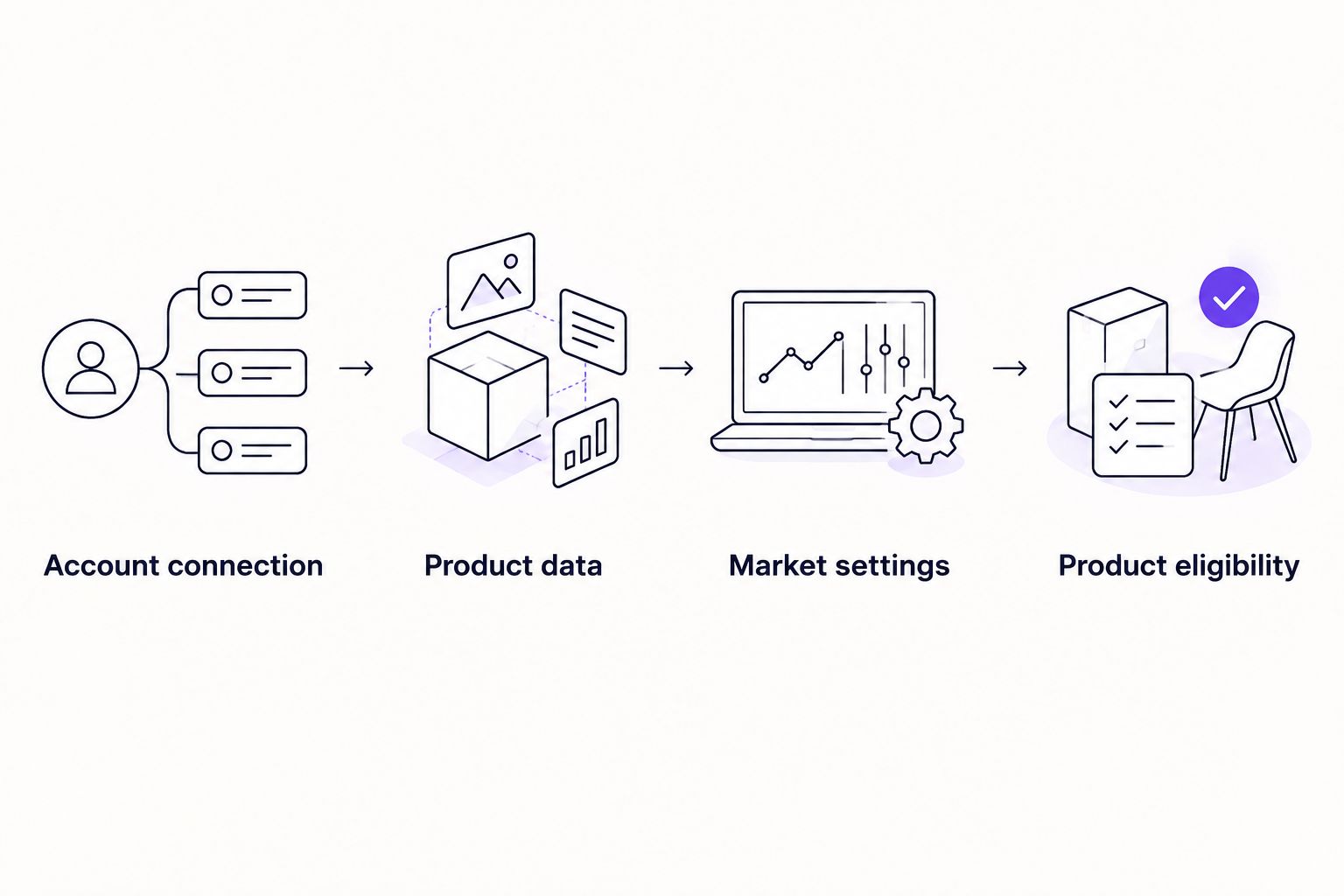
The 2026 feed workflow has a clear sequence: Account connection, Product data, Market settings, then Product eligibility. Finish each unit before moving to the next; otherwise, a catalogue error can conceal an account problem.
Sync product changes without rebuilding the connection
The adjacent workflow is ongoing catalogue maintenance. Once native synchronisation is working, ordinary product edits belong in Shopify rather than in a fresh export or a replacement connection.
- Update the relevant product or variant in Shopify Products. Keep identifiers unchanged unless the product identity genuinely changes.
- Confirm that the product remains included in Google & YouTube. Review any category-specific Google fields affected by the edit.
- Check the corresponding Merchant Center record after the source updates. Compare the changed attributes and landing page rather than assuming that saving Shopify proves successful ingestion.
- Inspect Needs attention for new issues. Record the cause and fix so the next product upload does not repeat it.
Expected result: The existing Merchant Center record reflects the intended change without another primary feed or account connection.
When the native channel cannot supply a required enrichment, evaluate supplemental product data. Match its ID attribute to the primary record exactly. Use it for a defined correction or enrichment, not as a workaround for inaccurate Shopify records.
Troubleshooting
Products are missing from Merchant Center
Check whether the product is published to Google & YouTube, whether the correct Merchant Center account is connected, and whether the product appears in the expected data source. Resolve submission scope before changing campaign settings.
The website cannot be claimed
Identify the Merchant Center account that currently holds the claim. Recover access or coordinate the transfer with its administrator. Creating more accounts does not resolve the ownership conflict.
An identifier or variant attribute is rejected
Compare the submitted identifier with the manufacturer’s record and the exact variant. Correct missing apparel attributes at variant level, and remove invented identifiers. Only mark a product as having no identifiers when that accurately describes it.
Google reports inconsistent product details
Open the submitted landing page and follow the same variant through checkout. Check structured data, market-specific rendering and the feed record for conflicts. Fix the source of disagreement rather than repeatedly requesting review.
Products are eligible but ads are not serving
Check the linked Google Ads account, campaign status, product selection and campaign restrictions separately. Merchant Center eligibility does not create a campaign or establish that its configuration can serve ads.
Customise your workflow around profit
A working feed makes products usable. It does not tell you which products deserve acquisition spend.
For your 2026 operating routine, connect feed health to commercial decisions:
- Product economics: Group products by the margin available to fund acquisition, not just their category.
- New-customer acquisition: Track the cost of winning genuinely new customers, without repeat purchases making acquisition look cheaper.
- Commercial measurement: Use MER, total revenue divided by paid-channel spend, and aMER, new-customer revenue divided by paid spend, alongside your P&L.
- Creative feedback: Use customer questions and campaign results to inform distinct messages, angles and formats, rather than making minor variations indefinitely.
How we help: At Ecom Republic, our ecommerce paid media, creative and growth strategy work uses shared commercial numbers. All strategy, creative and media buying are delivered by senior staff, with creative scope sized to goals, spend, average order value and evidence.
That is a strong fit for brands with proven demand and readiness to grow profitably. It is not the same service as a standalone feed repair. Email/SMS and CRO support retention and conversion rather than replacing the acquisition engine.
FAQ
What is the best way to connect Shopify to Google Merchant Center?
Shopify’s Google & YouTube channel is the recommended starting point for native catalogue synchronisation. Connect the correct Merchant Center account, prepare product records and resolve eligibility issues before using the catalogue in campaigns.
Do I need Google Ads to set up a Shopify product feed?
No, a Google Ads account is not required simply to submit products to Merchant Center. Paid campaigns require a separate Google Ads setup and the appropriate account connection.
Does Shopify update the Google Merchant Center feed automatically?
Google & YouTube synchronises eligible Shopify product data with the connected Merchant Center account. Check the resulting Merchant Center record after an edit; a saved Shopify change is not proof that Google has processed it.
Why are my Shopify products missing from Merchant Center?
Check product publishing, the connected Merchant Center account and the intended data source first. Then inspect product-level issues and account restrictions in Merchant Center.
Can I submit products without a GTIN?
Yes, when the products genuinely have no assigned GTIN and the applicable identifier requirements are satisfied. Do not invent a barcode or describe a manufacturer-identified product as having no identifiers.
Does an approved Merchant Center feed mean my ads are ready?
No, feed eligibility does not establish campaign delivery or accurate purchase measurement. Check Google Ads configuration, product selection, landing pages and conversion tracking separately.
Can Ecom Republic help beyond the feed connection?
Ecom Republic is a creative and growth agency for DTC ecommerce brands with proven demand. Its senior team connects paid media, creative and strategy to commercial results rather than treating catalogue approval as the outcome.
One last thing
An eligible product can still be commercially unsuitable for paid acquisition. Before increasing spend, check what remains after product costs, discounts, returns, fulfilment, payment fees and advertising, then include operating costs in your profit assessment.
The best final feed check is not another dashboard screenshot. It is a product record that matches the customer’s buying journey and a measurement setup that tells you whether acquiring that customer makes business sense.